Set up Kriyone Deck on your Mac, tablet and phone
Set up in about 5 minutes. You need a Mac (macOS 14 or later), a tablet or old phone with a web browser, and both on the same Wi-Fi.
1Install on your Mac
- Download
Kriyone-Deck-1.2.1.dmgbelow or from kriyone.com/deck. - Open the downloaded file and drag Kriyone Deck into Applications.
- Open Kriyone Deck from Applications. macOS says it can't check the app; click Done.
- Open System Settings → Privacy & Security, scroll down, and click Open Anyway next to Kriyone Deck, then confirm. You only do this once.
The Kriyone Deck window opens. After that, Kriyone Deck lives in your menu bar (the grid icon at the top right). If you can't see the icon, open Kriyone Deck again from Applications or Spotlight to bring the window back.
 Download for Mac (free, 2.7 MB)
Version 1.2.1 · macOS 14 Sonoma or later, Apple silicon and Intel
SHA-256: 968f1601a89e1fa69d463c59592cdb68331f3bf4b459576f4e51adb8acfe7953
New in 1.2.1: Fixes album art showing as a broken image on the tablet.
2Sign in (gives your Mac a secure link)
- In the Kriyone Deck window, click Sign in…. Your browser opens.
- Choose Continue with Google, or enter your email and click the link we send you (open it on this Mac).
- When the browser asks to open Kriyone Deck, click Open.
- Wait for “Secure link ready”. The first time takes 1–3 minutes while your Mac gets its certificate.
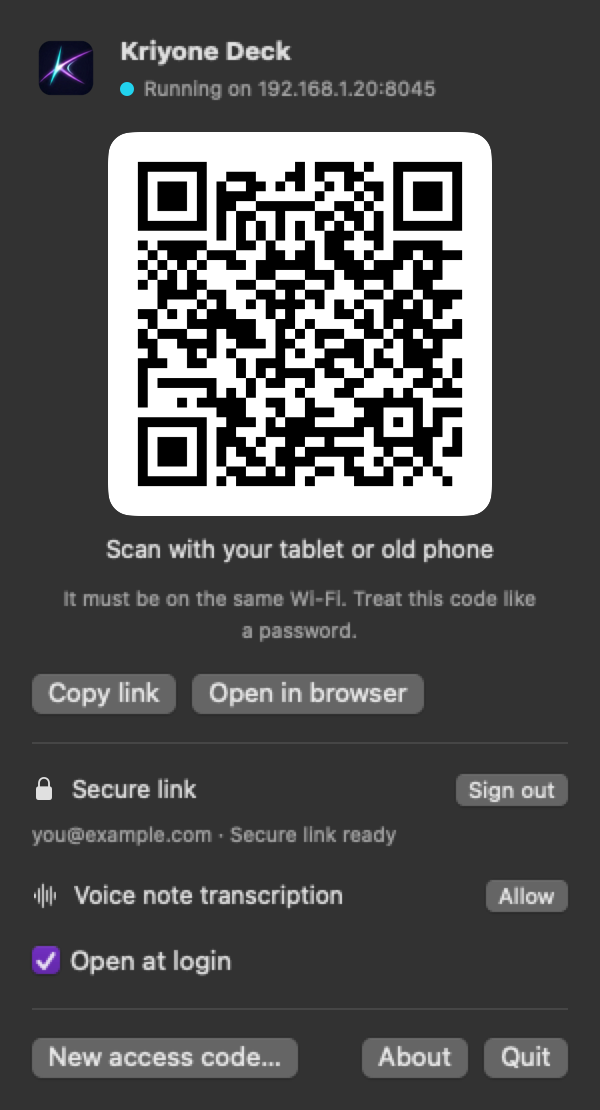
The QR code now holds your Mac's secure link, like https://ab12cd.lan.kriyone.com:8047/…. Turn on Open at login so the deck is always ready.
3Allow permissions on the Mac
macOS asks the first time each feature is used. Click Allow for:
| Prompt | Needed for |
|---|---|
| Speech Recognition | Voice notes (turning speech into text, on your Mac) |
| Notes | Saving voice notes to Apple Notes |
| Spotify / Music | Now playing and playback controls |
You can check these later in System Settings → Privacy & Security.
4Set up your tablet or phone
- Connect it to the same Wi-Fi as your Mac.
- Scan the QR code in the Kriyone Deck window with its camera. No QR scanner? Click Copy link on the Mac and send the link to the tablet (email, message, notes), or type it into the browser's address bar exactly as shown.
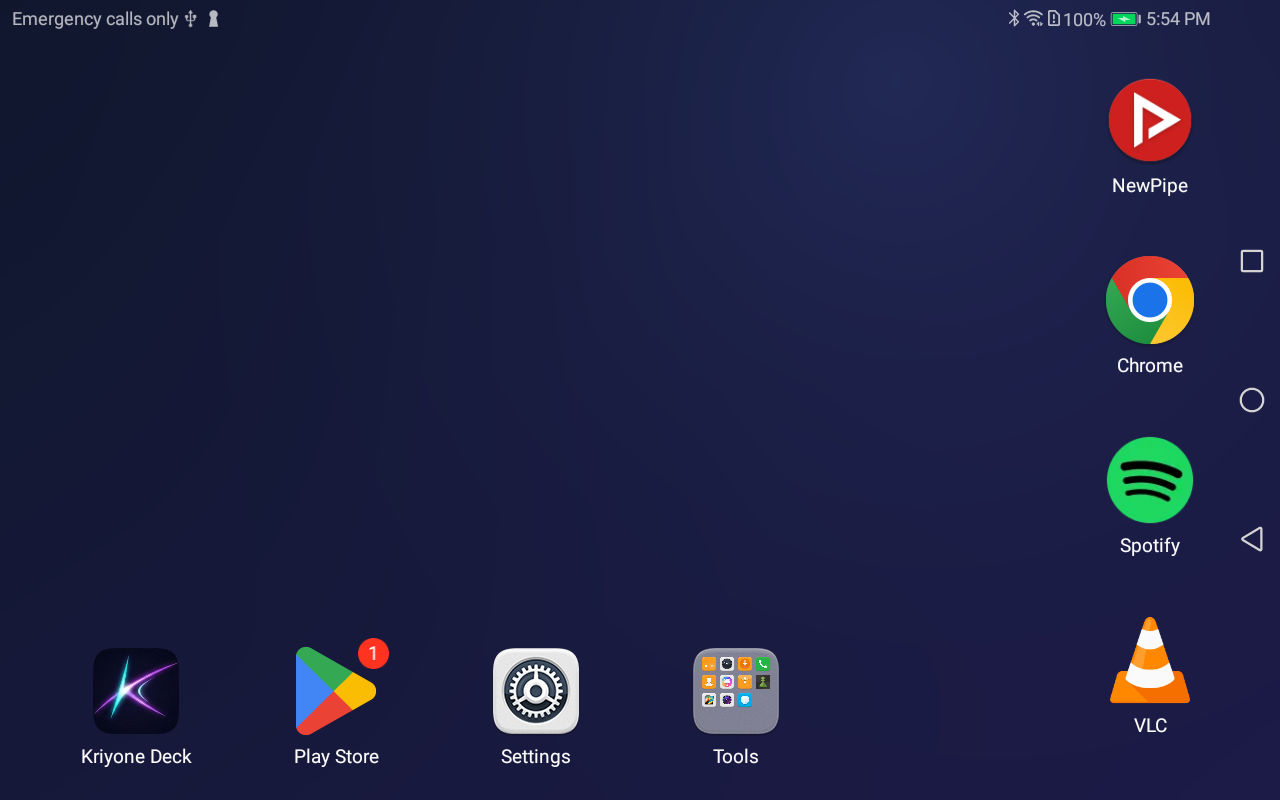
- Add it to the home screen so it opens like an app (steps for each browser below).
- Hold any key to choose your 7 apps.
- The first time you tap Voice note, the browser asks to use the microphone: tap Allow.
5Install the deck as an app on your tablet or phone
Nothing to download on the tablet: you add your deck's link to the home screen and it opens full screen, without the browser's address bar, like an app. Open your deck's link first (step 4), then:
Android: Chrome
- Tap the ⋮ menu at the top right.
- Tap Add to Home screen (on newer versions it may say Install app), then Add.
Android: Samsung Internet
- Tap the ☰ menu at the bottom right.
- Tap Add page to → Home screen, then Add.
Android: Firefox
- Tap the ⋮ menu.
- Tap Add to Home screen (or Install), then Add.
iPad and iPhone: Safari
- Tap the Share button (the square with an arrow).
- Scroll down and tap Add to Home Screen, then Add.
This version has been tested on Android tablets with Chrome. iPad and iPhone should work the same way.
Then open Kriyone Deck from the home screen. It goes full screen when you first touch it.
Tips
- Turn the tablet to landscape and set its screen timeout to a long time (or “Stay awake while charging” in Android's developer options) so the deck stays on.
- If you choose New access code… on the Mac, delete the old home-screen icon and add the new link again.
- Each Mac has its own link. To control a second Mac, add its link as a second icon.
Using it
- App keys: tap to open that app on your Mac. Hold to change them.
- Voice note: tap and speak, tap the mic to stop, check the text, then Add to Notes. Hold the key to open Notes on your Mac.
- Now playing: play/pause, previous and next for Spotify or Apple Music. Tap the song to bring the player up on the Mac.
- Internet: tap the card to run a speed test.
Troubleshooting
“Can't reach your Mac” or the page won't load on the tablet
- Both devices must be on the same Wi-Fi network, and Kriyone Deck must be running on the Mac.
- Guest Wi-Fi networks often keep devices apart. Use your main network.
- Some routers block web addresses that point inside your home network (“DNS rebinding protection”). In your router's settings, add
lan.kriyone.comas an exception, or set the tablet's Wi-Fi to use a public DNS such as 1.1.1.1.
The panel says “Couldn't reach Kriyone”
Your Mac couldn't contact Kriyone to sign in or renew its certificate. Check the Mac's internet connection; it retries automatically every 2 minutes. The deck keeps working meanwhile.
Voice note says the microphone is blocked
In the tablet's browser, open the site settings for your deck's address and allow the microphone.
I can't find the menu-bar icon
Open Kriyone Deck again from Applications or Spotlight; the window comes back.
Someone else might have my link
Click New access code… in Kriyone Deck, then scan the new QR code on each of your tablets.
Privacy
Your tablet connects directly to your Mac over your Wi-Fi with HTTPS. App names, music, notes and voice recordings never leave your home network. Kriyone's servers only handle your sign-in and give your Mac its secure web address and certificate.
Uninstall
Click Sign out in Kriyone Deck (optional), Quit, then move Kriyone Deck from Applications to the Trash.
Kriyone Deck © 2026 Kriyone. Includes OldPhoneDeck, © OldPhoneDeck contributors, MIT License (see About Kriyone Deck in the app). Stream Deck is a trademark of Elgato (Corsair); Kriyone Deck is not affiliated with or endorsed by Elgato or Corsair.